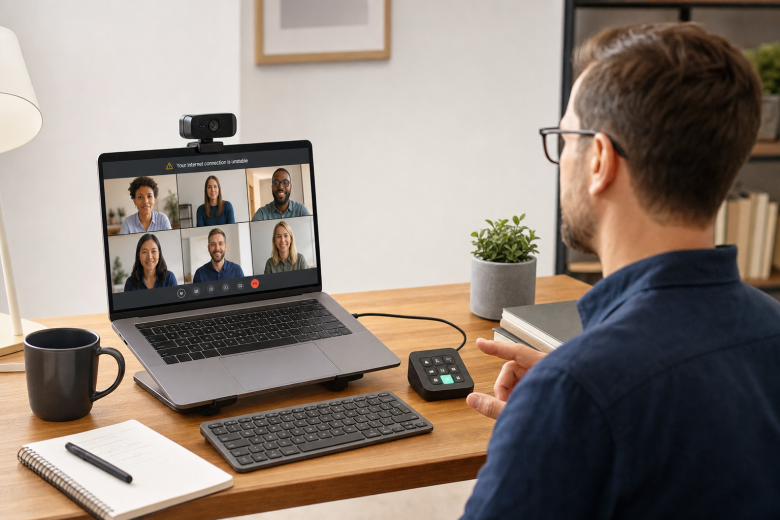
Securing a job interview is an exciting milestone, but when that interview is hosted on Zoom, Microsoft Teams, or Google Meet, a notoriously unstable home internet connection can turn excitement into pure dread. Video conferencing requires high, sustained bandwidth for both downloading the interviewer’s video and uploading your own. If your Wi-Fi drops out, your screen freezes, or your audio becomes distorted, it disrupts the flow of the conversation and can make you appear disorganized, even though the infrastructure is out of your control.
Official Source: https://support.microsoft.com/en-us/office/monitor-your-call-and-meeting-quality-in-microsoft-teams-7bb1747c-d91a-4fbb-84f6-ad3f48e73511
Fortunately, hiring managers are highly accustomed to remote work glitches and do not expect absolute technical perfection. What they do expect, however, is preparation. By setting up physical hardware backups, clearing your local network of bandwidth hogs, and communicating proactively when things go wrong, you can demonstrate exceptional crisis management skills. Treating your unstable internet as a logistical problem to be solved proves to the employer that you remain calm and resourceful under pressure.
Official Source: https://www.indeed.com/career-advice/interviewing/video-interview-guide
Step 1: Hardwire Your Computer with an Ethernet Cable
The single most effective way to stabilize a weak internet connection is to completely bypass your Wi-Fi router’s wireless broadcast. Wi-Fi signals are easily disrupted by walls, microwaves, and neighboring networks, leading to “packet loss” which causes robotic audio and frozen video. Connecting your laptop directly to your modem or router using a physical Ethernet (RJ45) cable provides a direct, uninterrupted pipeline for your data. If your modern laptop lacks an Ethernet port, purchase an inexpensive USB-C to Ethernet adapter. Verification: Once the cable is plugged in, manually turn off your computer’s Wi-Fi adapter to force the operating system to route all traffic through the stable wired connection.
Official Source: https://support.microsoft.com/en-us/windows/fix-wi-fi-connection-issues-in-windows-9424a1f7-6a3b-65a6-4d78-7f07eee84d2c
Step 2: Prepare a Mobile Hotspot as a Failover Backup
Even with an Ethernet cable, a neighborhood-wide ISP outage will completely kill your home internet. You must have a secondary network ready to go at a moment’s notice. Before the interview begins, turn on your smartphone’s “Personal Hotspot” feature and plug the phone into your computer using a USB cable (tethering is generally more stable than a wireless hotspot). Verification: Connect your computer to the hotspot 30 minutes before the interview, open a web browser, and run a quick speed test to ensure your cellular data signal in that specific room is strong enough to handle video.
Official Source: https://support.apple.com/en-us/111785
Step 3: Shut Down All Background Bandwidth Hogs
If your internet pipe is narrow, you cannot afford to share it with other applications during your interview. Cloud storage services (like Google Drive, OneDrive, or Dropbox) frequently run background syncs that consume massive amounts of upload bandwidth, which will immediately degrade your camera quality. Before clicking the interview link, close all unnecessary browser tabs, pause any active downloads, and temporarily exit your cloud backup software. Verification: Open your Windows Task Manager (Ctrl + Shift + Esc) or Mac Activity Monitor and check the “Network” column to ensure no hidden background apps are secretly transmitting data.
Official Source: https://support.google.com/meet/answer/7368209?hl=en
Step 4: Keep the Dial-In Phone Number on Your Desk
Every major video conferencing platform (Zoom, Teams, Meet) provides a dial-in phone number alongside the meeting link. If your internet completely collapses and the video feed dies, your immediate backup plan is to call into the meeting using a standard cellular voice call. Write this phone number and the Meeting ID down on a physical piece of paper and keep it next to your keyboard. Verification: Having this written down ensures that if your computer screen freezes or your router dies, you do not lose access to the meeting details and can dial back in within 30 seconds to continue the interview via audio.
Official Source: https://support.google.com/meet/answer/9303069?hl=en
Step 5: Communicate the Risk Proactively
Do not wait for the video to freeze before mentioning your internet issues. Bring it up immediately during the small talk at the beginning of the interview. You can say, “Before we begin, I want to mention that my neighborhood has been experiencing some internet instability today. I have my computer hardwired and a mobile hotspot ready as a backup, but if I drop out, I will dial right back in using my phone.” Verification: Setting this expectation immediately removes the awkwardness if a glitch does happen, and the interviewer will be impressed by your proactive troubleshooting and contingency planning.
Official Source: https://www.careeronestop.org/JobSearch/Interview/interview-tips.aspx
Safety Warnings: What to Avoid
If your home internet is unstable, do not make the mistake of relocating your interview to a public coffee shop or a library. Public Wi-Fi networks are notoriously congested, unencrypted, and subject to severe throttling, making them far worse for video calls than a weak home connection. Furthermore, the uncontrollable background noise and lack of privacy will distract the interviewer and make you look unprofessional. Always prioritize a quiet, controlled environment where you can manage your own hardware backups.
Official Source: https://support.microsoft.com/en-us/windows/protect-my-pc-from-viruses-b36dd591-64f2-cb23-05f5-08130a08e4d3
Frequently Asked Questions (FAQ)
Should I turn off my camera if the connection is bad?
Yes. Video data consumes significantly more bandwidth than audio data. If the interviewer’s voice starts breaking up or lagging, politely interrupt and say, “It seems my connection is struggling to handle the video feed. I am going to turn my camera off so we can maintain clear audio.” Interviewers vastly prefer a clear, audio-only conversation over a freezing, robotic video feed where they cannot understand your answers.
Official Source: https://support.google.com/meet/answer/7368209?hl=en
What should I do if the call drops entirely?
If the call completely disconnects, do not panic. Immediately switch to your backup mobile hotspot or dial the phone number you wrote down in Step 4. If you cannot get back into the meeting within two minutes, immediately send an email from your phone to the recruiter or hiring manager stating: “I sincerely apologize, but my internet connection has completely failed. I am available to continue via a standard phone call right now at [Your Phone Number], or we can reschedule at your earliest convenience.”
Official Source: https://www.indeed.com/career-advice/interviewing/video-interview-guide
Is it acceptable to ask to reschedule before the interview?
If your ISP has announced a confirmed, prolonged outage in your area and you do not have cellular data as a backup, it is entirely professional to ask to reschedule. Send an email as early as possible explaining that a regional outage will prevent you from attending the video call. Hiring managers respect candidates who value their time enough to avoid a broken, frustrating meeting.
Official Source: https://www.careeronestop.org/JobSearch/Interview/interview-tips.aspx